 Digital Commons Help Center
How Can We Help?
Book GalleriesBook Galleries
Overview
Digital Commons book galleries support the publication of a variety of content from traditional books and manuscripts to magazines, newsletters, yearbooks, and more. Visitors browse book galleries by viewing thumbnail cover images either in a list with basic information about each book or, optionally, in a visual grid layout with cover images only. The list display is shown here:
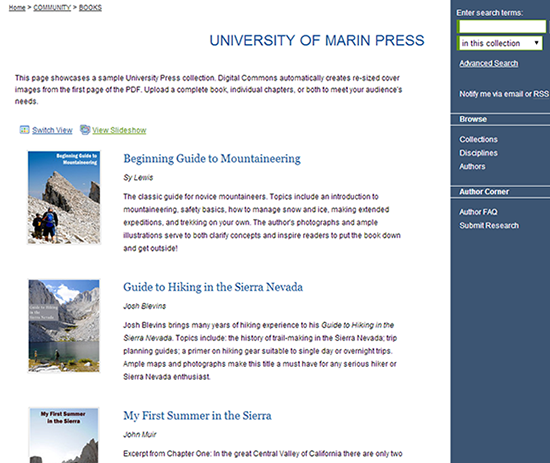
Each book’s individual page contains complete metadata as pictured below, with the option to download either a single full-text file or multiple files, if provided.
To request a book gallery, contact Consulting Services with the desired name and URL label (read more about what to include in a new structure request).
Upload Books
Administrators have the choice of allowing authors to upload their own materials or restricting uploads to the IR team:
- Authors can click the Submit Research link in the sidebar of the book gallery’s webpage, if the “Show link to submit form” setting is enabled on the book gallery Configuration screen. As part of the author submission process, authors will have to accept a Submission Agreement. The agreement may be modified by administrators on the Configuration screen, or by contacting Consulting Services for assistance.
- Administrators can click the Upload Book tab accessible from most book gallery configuration pages. Gallery-level administrators can also click Upload on their My Account page.
Books with One, Primary File
Example of book with a primary file and no chapters:

- On the submission form, complete the fields provided. It is recommended that all authors, including those in anthologies, are included in the author list for maximum discoverability.
- If the book is for sale on an external site, you can use the Buy Link field to enter the URL and enable a “Buy” button to appear beneath the cover image. Contact Consulting Services to add the field if it is not present.
- Upload the book’s primary file in the Upload File section. The system automatically converts Word and RTF documents to PDF and appends cover pages (unless cover pages are disabled).
- Choose a Cover Image option. If you do not upload an image, the system will automatically use the first page of the primary file.
- Click Submit. The book has now been submitted, but not yet posted to the site.
- On the confirmation page, authors and administrators will both be able to review the submitted information, revise their submission, or make another submission. Administrators will have these additional options:
- Manage All Submissions: Proceed to the Manage Books tab to access all book gallery submissions. See the “Manage Books” section below for details.
- Publish & Update Selected: Immediately publishes any books within the Publishing Queue that have marked checkboxes, and makes them visible to the public. The last submitted item will be checked by default. If submitting multiple items in a row, it’s only necessary to choose the Publish & Update option once after uploading the last book. All uploaded books stay in the Publishing Queue until you post them using either this option or the individual “Post” option described under “Manage Books.”
Books with Multiple Files
Example of book with primary file and additional files for chapters:
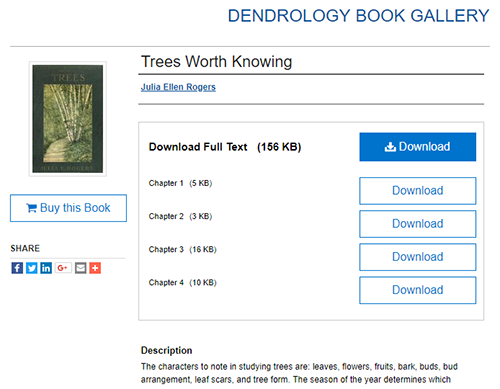
Administrators may upload books, anthologies, and other multi-part works in a single PDF as described above. Some may wish to provide chapters or otherwise split the book into smaller units—either as a download alternative to the primary file or as a substitute to it entirely.
- After completing steps 1-3 above, check the Include additional files box if you have split the book into separate files (e.g., chapters), and then press Submit.
- Follow the prompts to upload the additional file(s), and include descriptions (for example, “Chapter 1”). The Order column will control their display when posted.
- Press Continue and choose an option on the confirmation screen as described in the previous section for primary files.
Additional files provide flexibility to arrange supplemental content or individual chapters as desired underneath the book’s title. When you prepare additional files for upload, keep in mind:
- They will be visible in the same file format as you uploaded, so that datasets, sound files, and other content types will render correctly. Documents will not be converted to PDF.
- If your book gallery uses access controls or system-generated cover pages, these features apply only to the primary files.
Batch Upload Books
Books may be added via batch import, which includes support both for primary files and for additional files that hold chapters. The instructions in Batch Upload, Export, and Revise are applicable to book galleries and the Batch Upload File Manager can be used, if needed, to store files online for the batch upload process.
Cover Image Generation
Book galleries automatically generate a cover image from the first page of the primary PDF file (the PDF itself is not modified). If you prefer, you can choose to upload an image file instead in the Cover Image field on the submission form.

Manage Submitted Books
The Manage Books tab provides access to all of the books that have been uploaded to the book gallery. Access the Manage Books tab from within the gallery’s configuration tools or via the Administrator Toolbar when browsing the gallery. Gallery-specific administrators will also see a Manage Books link on their My Account page (site administrators will only see this option on the My Account page if they are also added as gallery administrators).
To view a list of submitted books:
Once an administrator or author submits a book, it will appear within the Manage Books tab in the “Not yet posted” state with any other pending submissions. To view books in other states, use the State drop-down menu. Options include: Not yet posted, All, Queued for update, Posted, Rejected, and Withdrawn. You may also filter results by selecting a particular field and clicking Search.
Click the underlined column headings in the list of books below to sort results or to reverse the sort order.
To view book details:
Click on the title of the book to view its Book Details page. This page allows you to review the book’s metadata, download the primary file and additional files, and locate sidebar links for submission management.
If there are multiple administrators who need to manage books, Consulting Services can enable an “assign” feature, allowing you to allocate books or steps in the workflow to individual administrators.
Post a Book
Administrators may post books immediately after upload via the Publishing Queue that is built into the submission confirmation screen. However, if authors are uploading their own books, or administrators need to go offline between uploading and posting, an administrator may post a previously submitted book at any time.
From the Book Details page:
- Click on the Post sidebar link
- Click Continue
- Press Update to make the book visible to the public
Revise a Book
From the Book Details page, use the Revise Book sidebar link to enter any edits and then press Submit. To revise a book’s additional files, use the Supplemental Content sidebar link and press Save.
If the book is already posted to Digital Commons, you will need to use the Update ir_book link in the book gallery sidebar to make your changes visible to the public.
Display Options
For a detailed guide to the configuration options common to most publications in Digital Commons, please see the Administrator Configurations Guide. The configuration options unique to books include:
Display Thumbnails as a Grid:
By default, the book gallery homepage displays a list view with the cover image, title, author(s), and description of each book. Select this option to switch to a grid view showing only thumbnails of the book cover images. Visitors will still be able to toggle the layout with the “Switch View” option.
If you would like to display additional metadata in list view or remove some of the fields, Consulting Services can customize the display for any of your book galleries.
Thumbnails per Page:
This setting allows you to control the number of books per page on the index page(s) of the book gallery. In grid view, the system can generally display up to four cover images per row, so a multiple of four may be ideal for this setting.
Change DOWNLOAD FULL TEXT label on book page:
For each book that has a primary file available to download, a “Download Full Text” label appears next to the Download button. Use this setting to change the label for files such as posters, scanned artwork, or musical scores where a term other than “full text” might be more appropriate.
Book Gallery Organization
A repository may have any number of book galleries, from one consolidated gallery to various book galleries nested under respective departments. In some cases, you may choose to display several related galleries together. For example, Consulting Services can add a community for the library, press, or a specific department, and underneath set up individual book galleries per year of publication, subject area, or book type.
Books also work with the Digital Commons Collection Tool available within the sidebar of the Configuration screen. A single book gallery might contain all books from the University Press, for instance, and titles could be collected from there into additional book galleries featuring specific disciplines or subject areas.
Frequently Asked Questions
Where can I find examples of book galleries?
- Bridgewater State University presents its past yearbooks in digital format at https://vc.bridgew.edu/yearbooks/
- Purdue University Press provides access to recent monographs at https://docs.lib.purdue.edu/purduepress_ebooks/
Where is the option to add a buy link?
If you need a buy link field enabled on the submit form, please contact Consulting Services to add it.
Can I use access control or embargoes with books?
Book galleries support our standard access control and embargo options, but it is important to note that only the primary file will have the restricted access. Additional files will still be available for download. This is helpful to administrators who wish to make sample chapters publicly accessible but restrict the full text to the campus community.
Do I have to display each book’s cover image on the left side of the page?
A book gallery can be set to feature individual book cover images on the right or the left of the book display page. Please contact Consulting Services if you would like to change the default.